
Joining Calls with Globo
Your call today is through Globo. This guide will walk you through the steps to join the call successfully.
- First, open the confirmation link you received
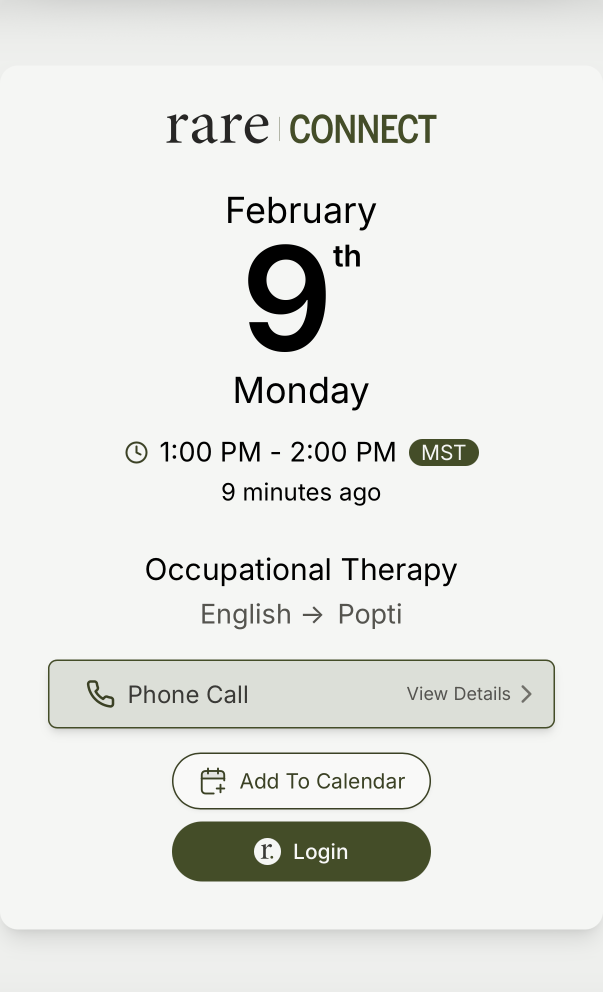
- Then, click View Details next to
Phone Callout

You have 2 options to join the call:
- Join via telephone: Dial the phone number provided in your email or calendar invite. Enter the
access codeandparticipant IDwhen prompted. - Join via web browser: Click the Globo web link in the format
https://globo.com/join/xxxxx. Enter theparticipant codewhen prompted. Theaccess codeshould be entered automatically.
Join at the scheduled start time
Globo may not let you into the call before the scheduled start time. If you are early, wait until the appointment start time and try joining again.
undefined
Write down your access code and participant ID
Before joining the call via phone, make sure you either write down the access code and participant ID provided in the confirmation link, or have them up on another device.
You will be prompted to enter these when you join the call, and it can be difficult to move back and forth between the details and the phone app.
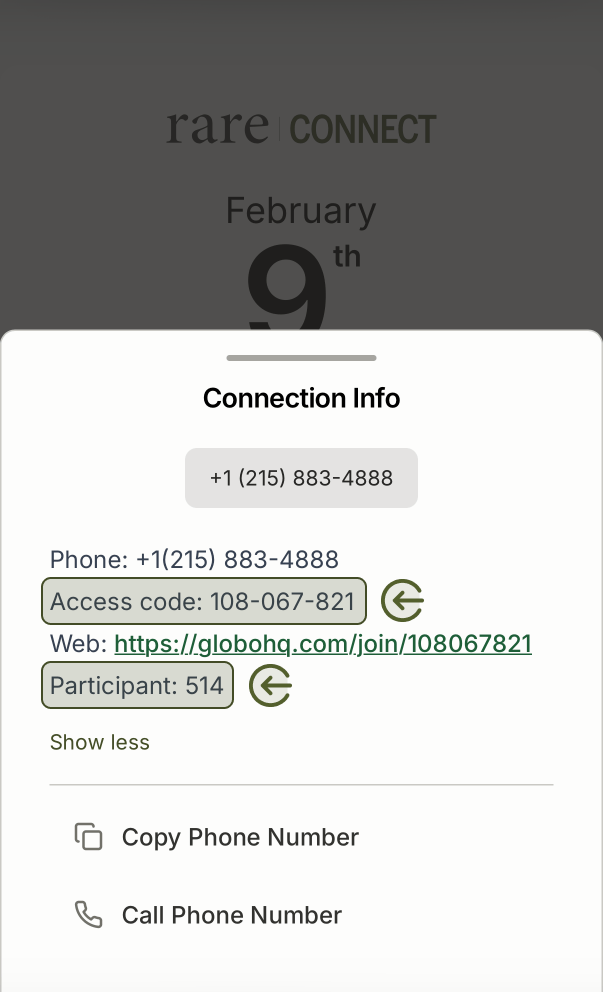
- Dial the phone number provided in your email or calendar invite.
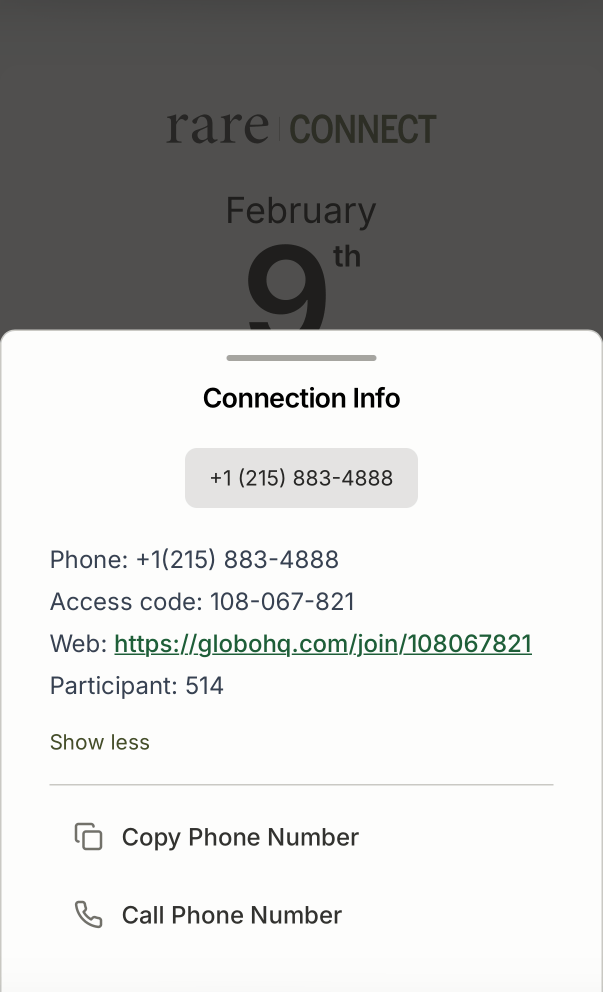
You can click Call phone number or just type in the number manually.
- Enter the
access codewhen prompted. - Enter the
participant IDwhen prompted. - Follow any additional prompts to join the call.
Once you are connected, if you don’t hear anyone else, sit tight and wait for them to join. If no one else joins after 5 minutes, let us know and we will follow up. Stay on the call while you wait.
Once You Have Joined
After you join the call, introduce yourself clearly before interpreting.
You can say:
Hello, my name is [your name]. I will be the [language] interpreter for today’s call.
Then wait for the call participants to begin.